Download the App
The app is distributed via the App Store. Download it for your Mac from the App Store ↗
First Start
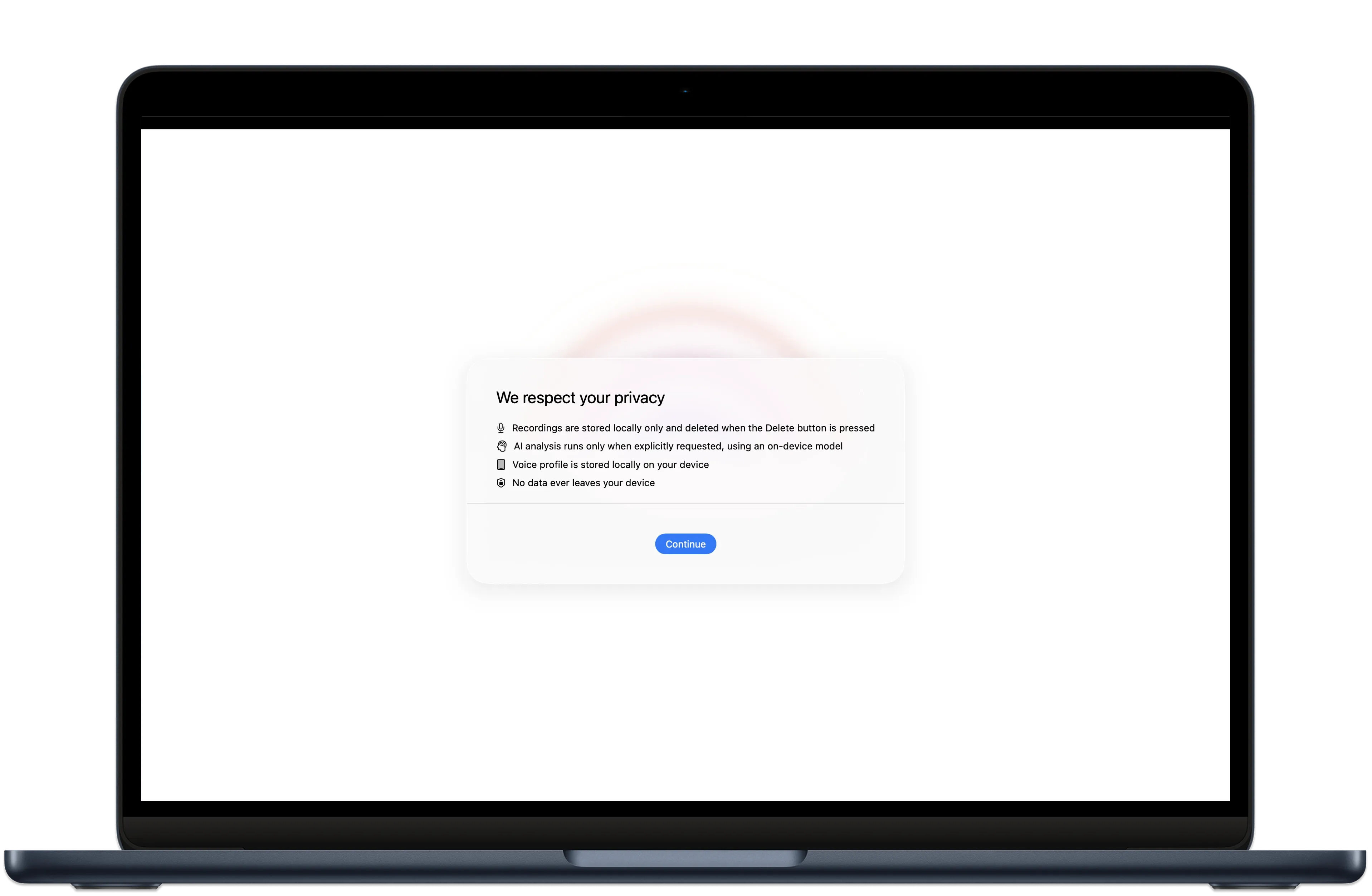
Once you open the app, you'll see the initial screen describing the privacy principles. Press Continue to proceed.
AI Model Configuration
Only if Apple Intelligence is not supported
If your device doesn't support Apple Intelligence, the app will ask you if you want to download the AI model.
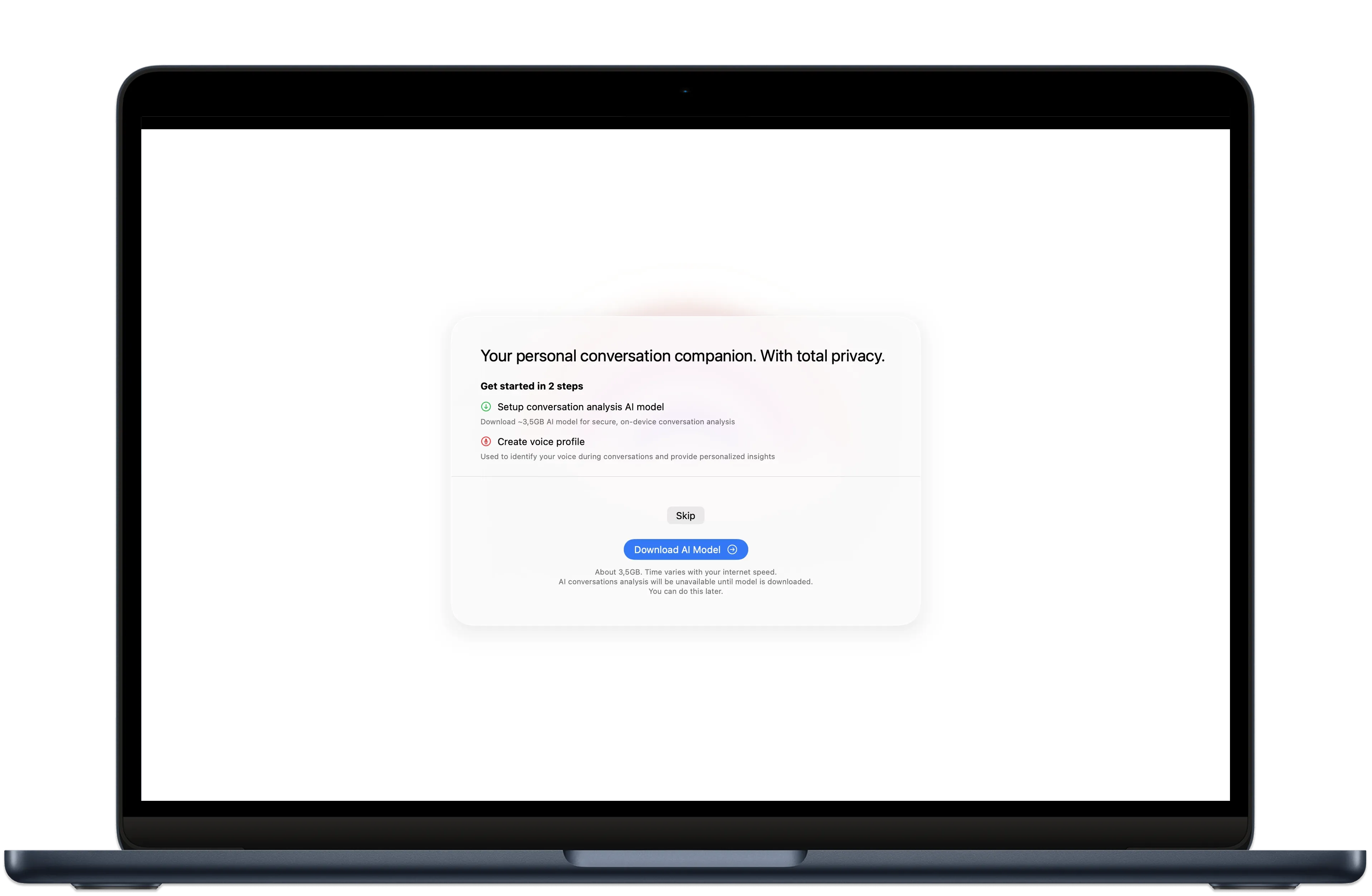
AI model is required for:
- AI analysis of recorded conversations: summary, insights, etc.
- Real-time insights during conversation
- Custom AI skills configuration
- Automatic conversation naming
You can choose to download the model now or download it later in the app's AI Models settings.
FAQ
There may be various reasons. Please refer to the Apple guide regarding Apple Intelligence.
It depends on the AI model recommended by the app for your device and hardware, and varies from 3 GB up to 20 GB or more. You can see all the model sizes in the AI Models app settings.
The app won't let you download the model. You can free up space and proceed after that, or download the AI model later in the app's AI Models settings.
Voice Profile Configuration
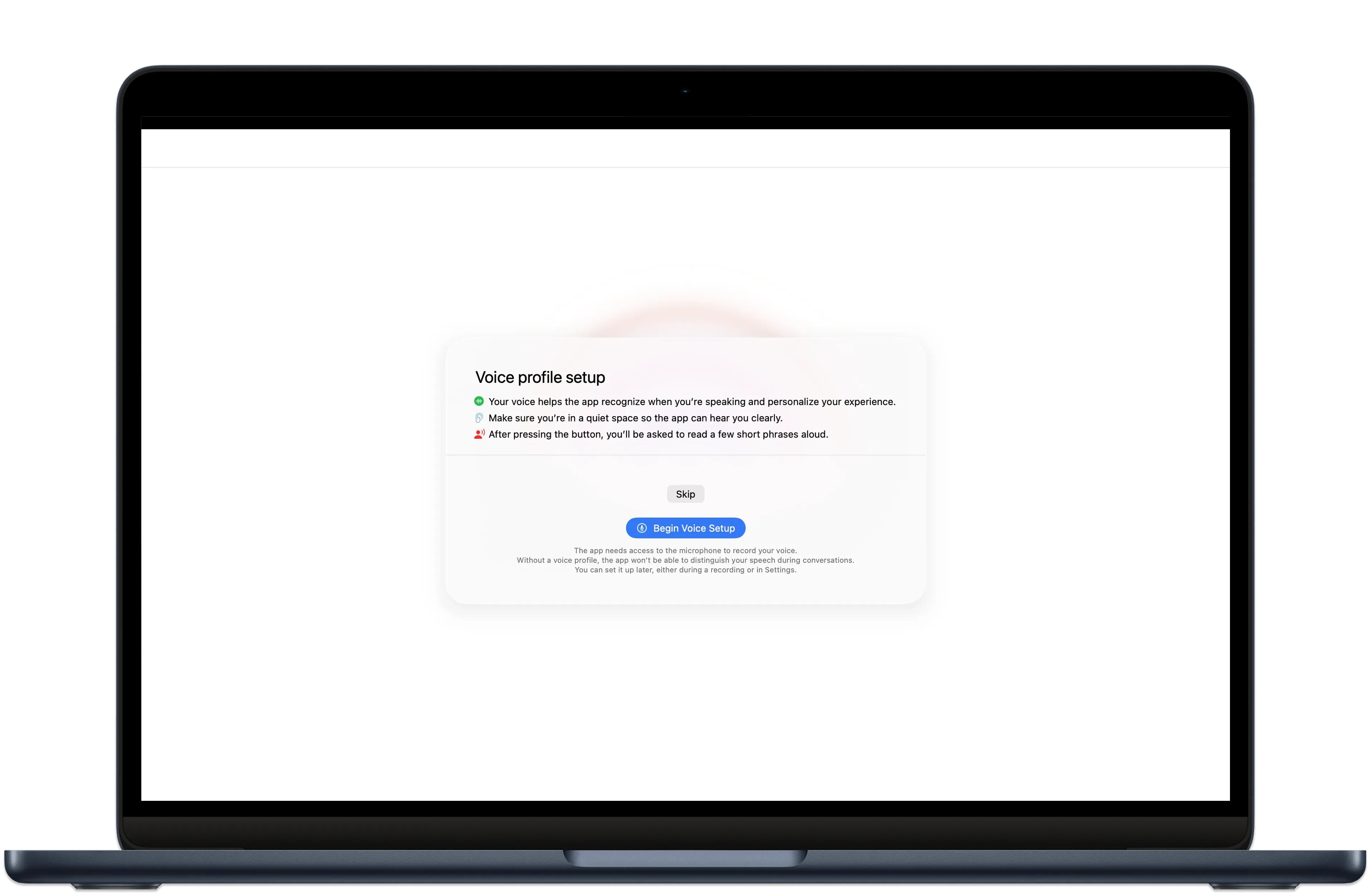
The next step is to configure your voice profile. XSpeak is made to help you in real-time during meetings and conversations. To understand the context better and provide suggestions specifically for you, the app needs to understand what you're saying. For that, the app uses your voice profile, and once it's set up, it can distinguish your voice.
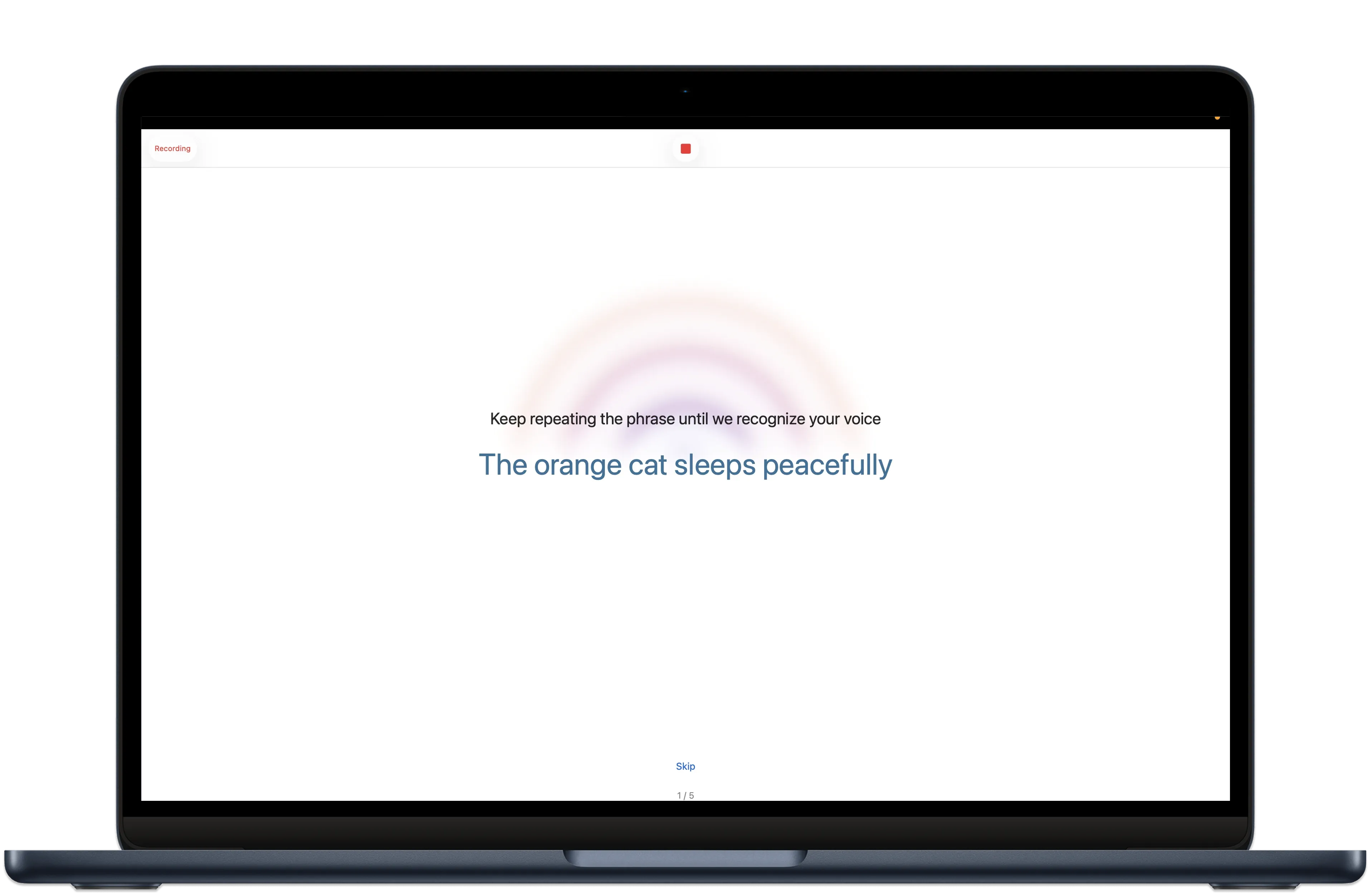
You can set up the voice profile here during onboarding or later from the Speakers app settings. Once you press Begin, the app will guide you through reading five phrases aloud and show you the result at the end. You can skip any phrases.
FAQ
The app stores your voice embeddings locally on your device. You can delete them anytime in the Speakers app settings.
There may be various reasons:
- Headphones are connected but not worn
- A loud environment
- Quiet speech
- A bug in the app
Please make sure you wear headphones if they are connected, find a quiet environment, and speak loudly and clearly. If that doesn't help, stop and restart the recording by pressing the recording button. If nothing helps, please contact us at
Speaker diarization is not perfect and can make mistakes. However, it's possible to achieve good results. To improve voice identification, keep assigning the correct speakers to the statements. Every time you fix the speaker, the app improves the voice profile and recognizes them better in the future. Ideally, the app should have different samples of the voice, including different intonations, lengths, and loudness.
First Recording
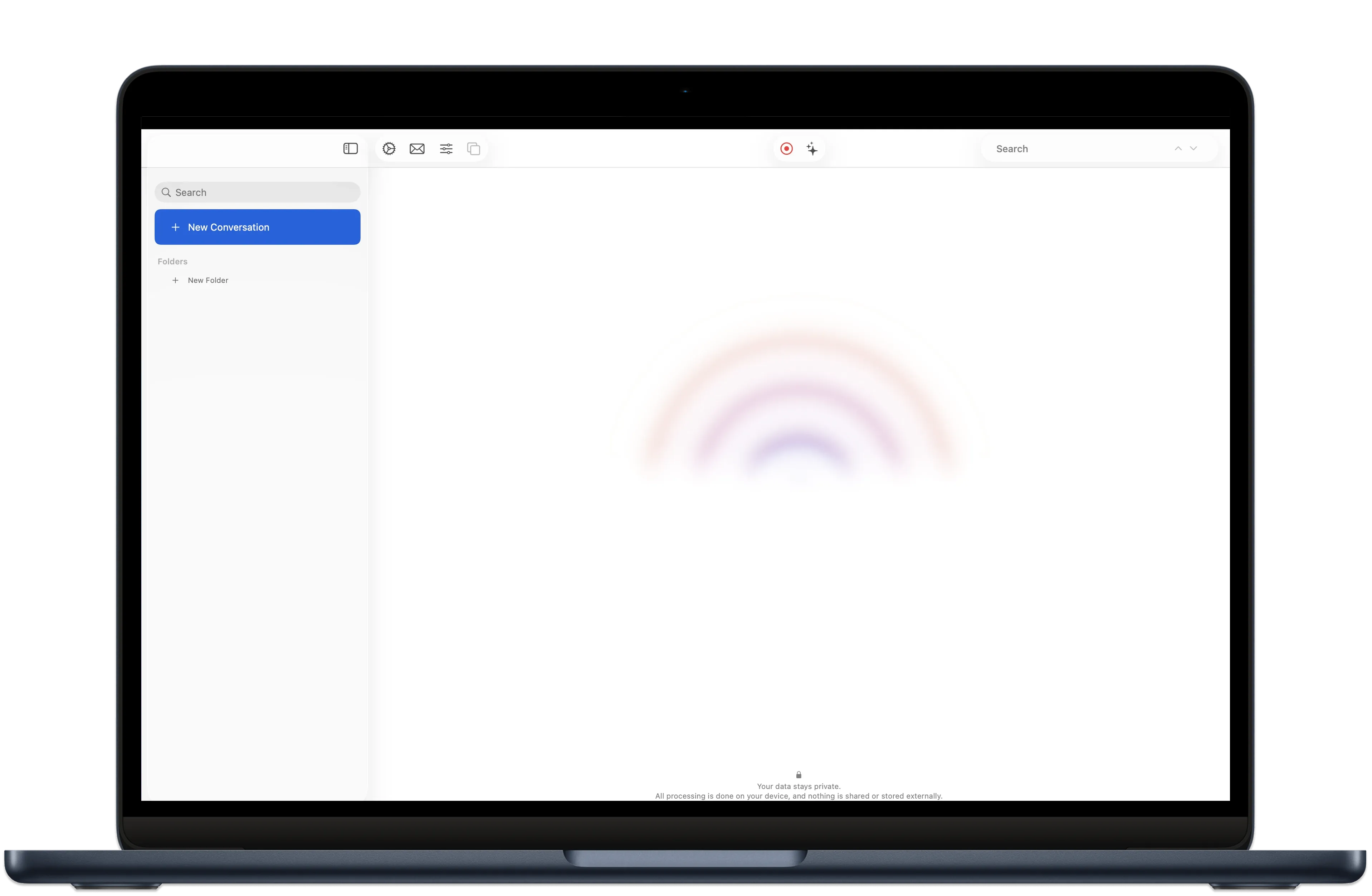
After creating or skipping the voice profile, you'll see the main screen. Let's make your first recording.
Choosing a Language
First, we'll choose the language. Press the Conversation Settings button to open language settings.
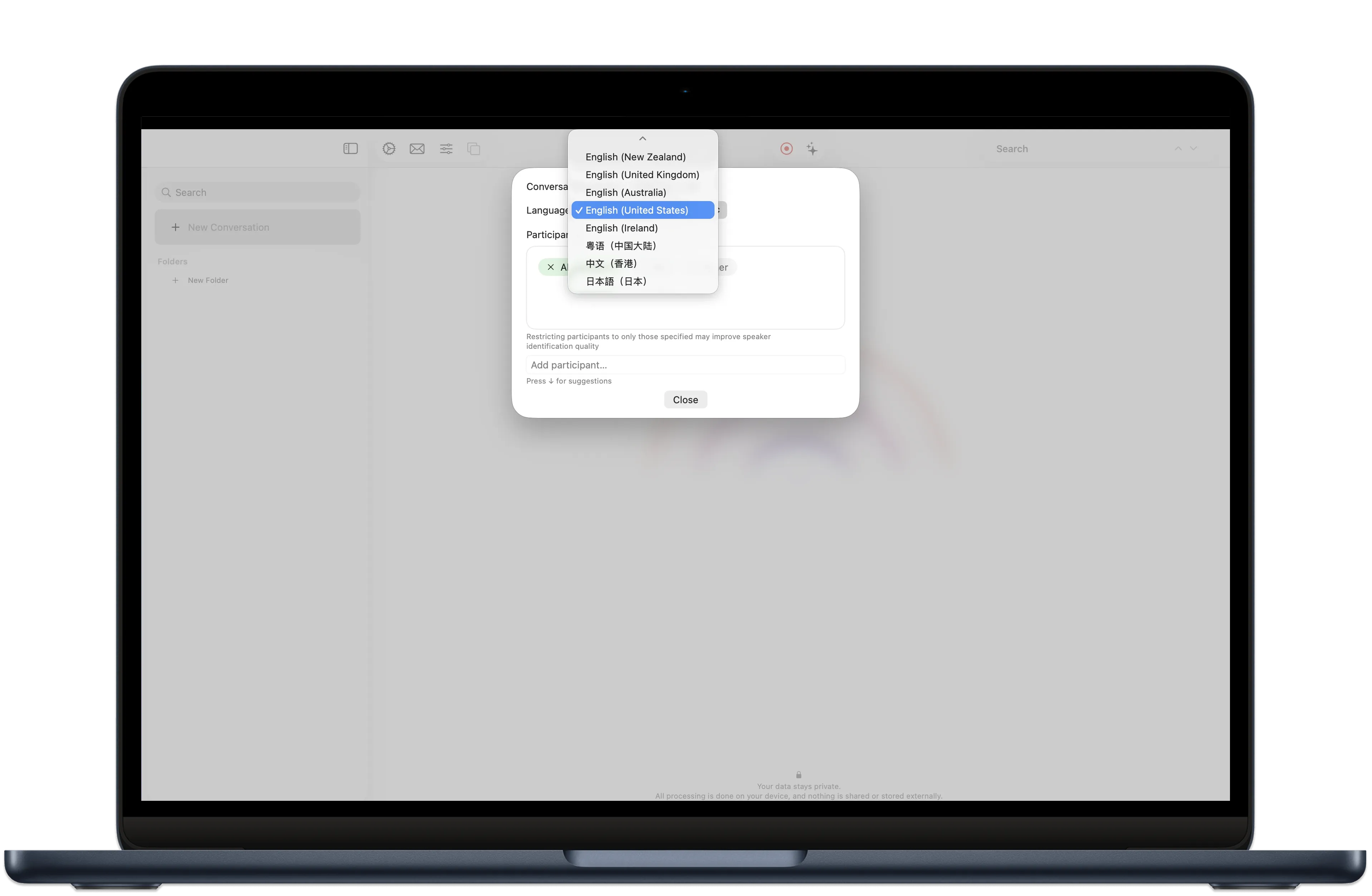
Choose the required language from the available languages and close the Conversation Settings window.
Downloading Speech Recognition Model Assets
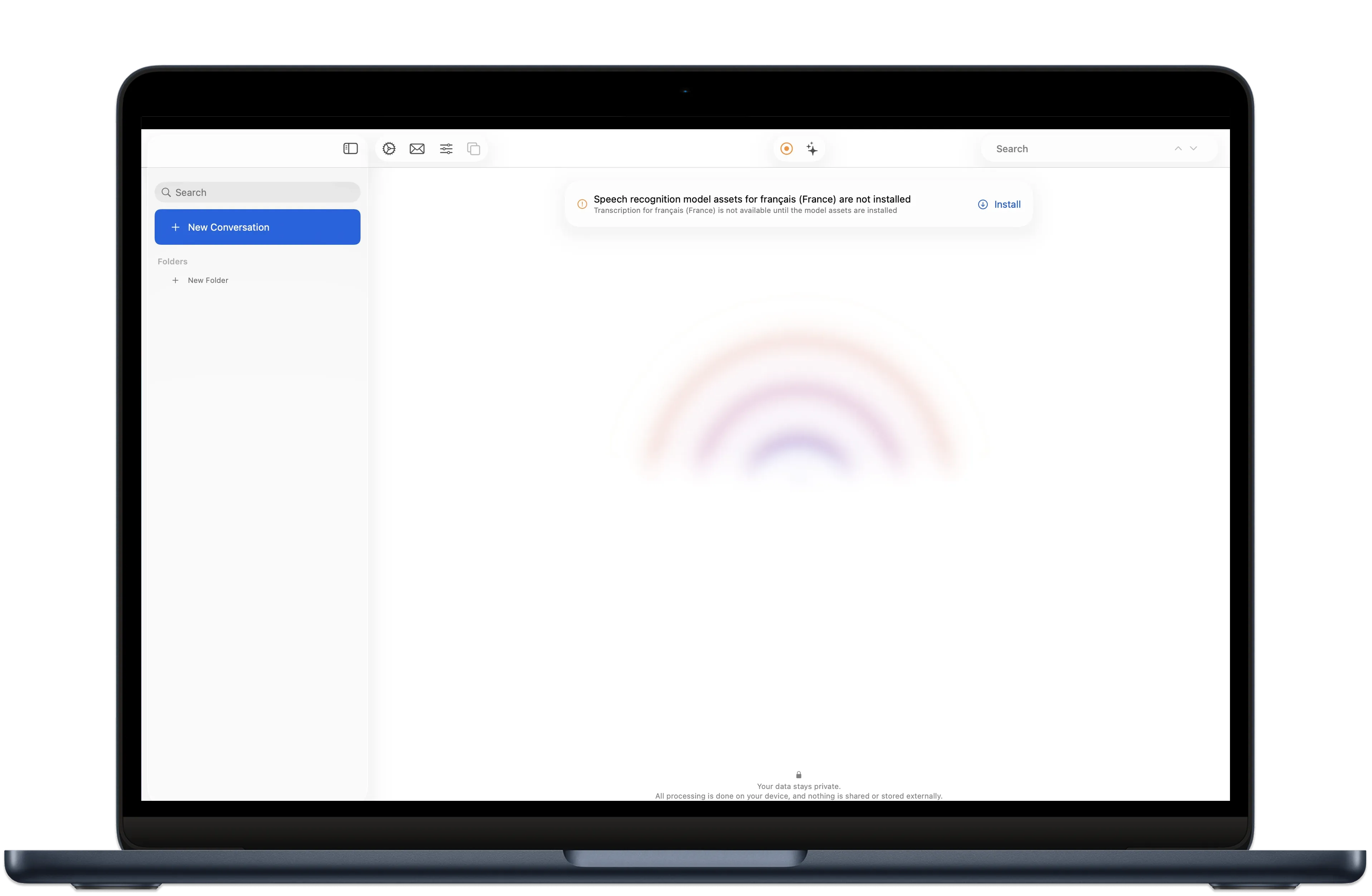
XSpeak uses the Apple Speech framework to produce transcription. It requires specific assets for each language. If the assets for your language are not present on your device, the app will show a warning at the top. In this case, press Install to set up the speech recognition assets.
Starting a Recording
Press the red Start Recording button. You'll see a disclaimer about getting consent from conversation participants. In many jurisdictions, it's required by law. Please check your local laws and get consent from all participants of the conversation. Once you press Agree, the recording starts.
There's a rainbow indicator at the top that shows audio volume. If the app hears sound, it responds.
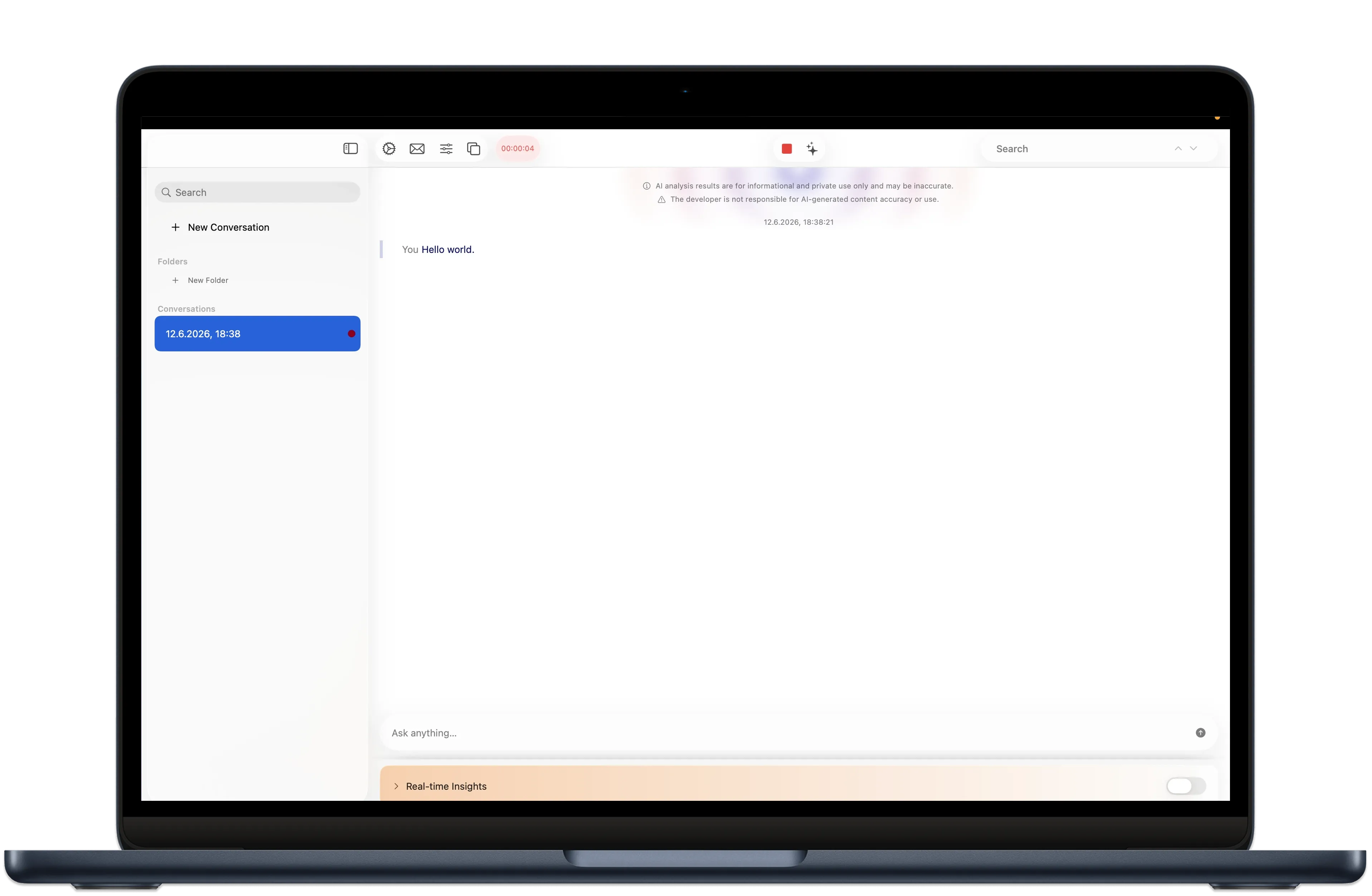
Say something. After a moment, the first statement appears in the conversation view: